
Customizing Your Computer: Tips to Personalize Your Digital Workspace
Tips to Personalize Your Digital Workspace
In the digital age, your computer is more than just a tool; it’s an extension of your personality, creativity, and work habits. Personalizing your digital workspace can make your computing experience more enjoyable, efficient, and reflective of your unique style. Here’s a guide to customizing your computer, from aesthetics to functionality.
1. Choose a Theme That Reflects Your Style
- Operating System Themes: Both Windows and macOS allow you to choose from a variety of themes, which can change the color schemes, fonts, and even the sounds of your system. Select a theme that suits your mood or matches the season.
- Dark Mode vs. Light Mode: Decide whether you prefer the sleek look of Dark Mode or the classic Light Mode. Dark Mode is easier on the eyes, especially in low-light environments, while Light Mode offers a cleaner and more vibrant look.
- Custom Wallpapers: Your desktop background is the first thing you see when you turn on your computer. Use a wallpaper that inspires you, whether it’s a favorite photo, a calming landscape, or digital art.
2. Organize Your Desktop for Efficiency
- Minimalist Desktop: Keep only essential icons on your desktop to reduce clutter. Use folders to group similar items, such as work documents, personal files, or shortcuts to frequently used apps.
- Custom Icon Packs: Download custom icon packs that match your theme or aesthetic. Changing the icons of your apps and folders can add a personal touch to your workspace.
- Virtual Desktops: Use virtual desktops to separate different areas of your life, such as work, gaming, and personal projects. This allows you to switch between different environments without clutter.
3. Customize Your Start Menu or Dock
- Pin Favorite Apps: Keep your most-used applications within easy reach by pinning them to your Start Menu (Windows) or Dock (macOS). Rearrange them according to your workflow for quick access.
- Custom Shortcuts: Create shortcuts for specific tasks, such as opening a particular folder or launching a web browser in incognito mode. These can save time and streamline your workflow.
4. Personalize Your Browser
- Custom Themes: Most web browsers, like Chrome and Firefox, allow you to install custom themes. Choose a theme that complements your desktop setup.
- Bookmarks Bar: Organize your bookmarks bar with folders and icons for quick access to your favorite websites. You can also customize the appearance of the bar for a cleaner look.
- Extensions: Install browser extensions that enhance your productivity or reflect your interests. From ad blockers to custom new tab pages, the possibilities are endless. (Tips to Personalize Your Digital Workspace)
5. Optimize Your Workflow with Custom Tools
- Task Management Software: Use tools like Trello, Asana, or Notion to keep track of tasks, deadlines, and projects. Customize these platforms with your own backgrounds, colors, and layouts.
- Keyboard Shortcuts: Learn and customize keyboard shortcuts to speed up your workflow. Most operating systems allow you to create your own shortcuts for frequently performed actions.
- Automate Repetitive Tasks: Use automation tools like AutoHotkey (Windows) or Automator (macOS) to automate repetitive tasks, such as opening a set of applications when you start your computer. (Tips to Personalize Your Digital Workspace)
6. Enhance Your Audio and Visual Experience
- Custom Sound Schemes: Change your system sounds to something more pleasant or unique. Whether it’s the startup chime or notification alerts, custom sound schemes can make your computer feel more personalized.
- Screen Savers: Choose a screen saver that aligns with your style, whether it’s a sleek digital clock, a slideshow of favorite photos, or a dynamic animation. (Tips to Personalize Your Digital Workspace)
7. Hardware Customization
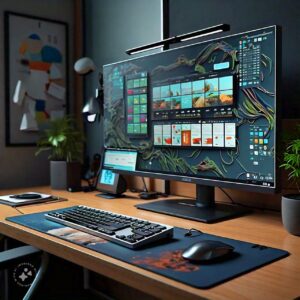
- Custom Peripherals: Invest in peripherals like keyboards, mice, and monitors that match your aesthetic. Mechanical keyboards, in particular, offer a wide range of customization options, from keycap colors to backlighting effects.
- Desk Setup: Consider your physical workspace as part of your digital customization. A clean and organized desk with the right accessories can enhance your productivity and comfort. (Tips to Personalize Your Digital Workspace)
8. Security and Privacy Settings
- Custom Lock Screen: Set a custom lock screen image and message. It can be a motivating quote, a reminder, or simply an image that makes you smile.
- Secure Your Workspace: Personalization isn’t just about looks; it’s also about making sure your workspace is secure. Customize your security settings to ensure that your data is protected, with features like two-factor authentication and encrypted storage. (Tips to Personalize Your Digital Workspace)
Conclusion
Customizing your computer is not just about aesthetics; it’s about creating a workspace that enhances your productivity, reflects your personality, and makes your daily tasks more enjoyable. Whether you’re a minimalist who prefers a clean and simple setup or someone who loves vibrant colors and dynamic themes, there’s a wide range of customization options available to help you make your digital workspace truly your own.(Tips to Personalize Your Digital Workspace)(Tips to Personalize Your Digital Workspace)
We are also on Facebook
Go back to home page: 33Services
If you want to Digital Marketing Service with Us Please go here: Digital Marketing Services